> ## Documentation Index
> Fetch the complete documentation index at: https://docs.persys.ai/llms.txt
> Use this file to discover all available pages before exploring further.
# Getting Started
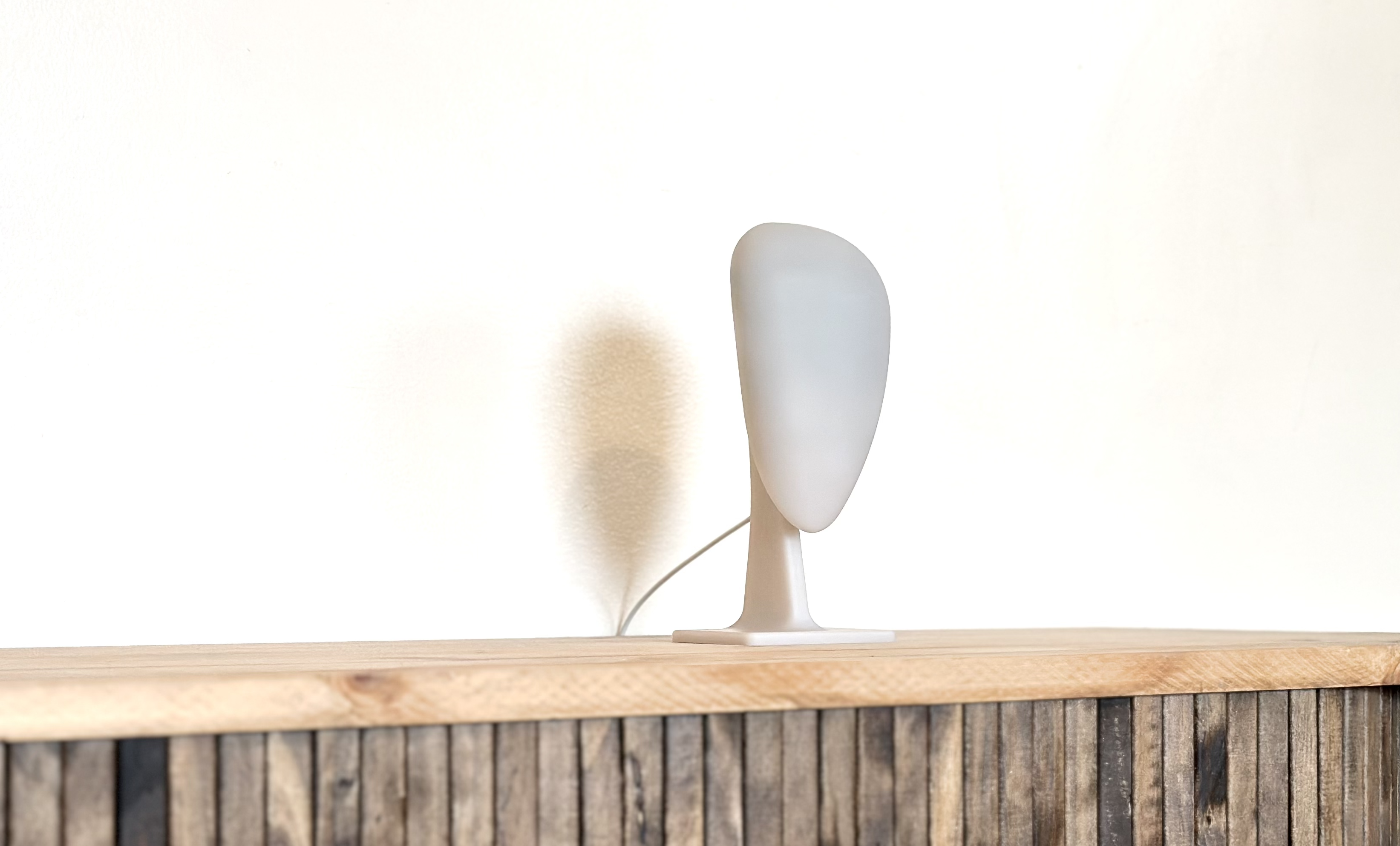 Welcome to the official Persys documentation site.
Now that you have finished unboxing and plugging in your Persys Console, follow the instructions below to get started.
## Download the Persys desktop application.
Download Persys for Mac (v2.1.0)
## Connect to Wi-Fi
To access your Persys Console, you will need to log-in to its onboard WiFi hotspot.
Look for a WiFi SSID "PERSYS-0000" where the "0000" is unique to your device.
You can connect Persys to your local WiFi network after the next step (Log In).
## Log In to Desktop App
Welcome to the official Persys documentation site.
Now that you have finished unboxing and plugging in your Persys Console, follow the instructions below to get started.
## Download the Persys desktop application.
Download Persys for Mac (v2.1.0)
## Connect to Wi-Fi
To access your Persys Console, you will need to log-in to its onboard WiFi hotspot.
Look for a WiFi SSID "PERSYS-0000" where the "0000" is unique to your device.
You can connect Persys to your local WiFi network after the next step (Log In).
## Log In to Desktop App
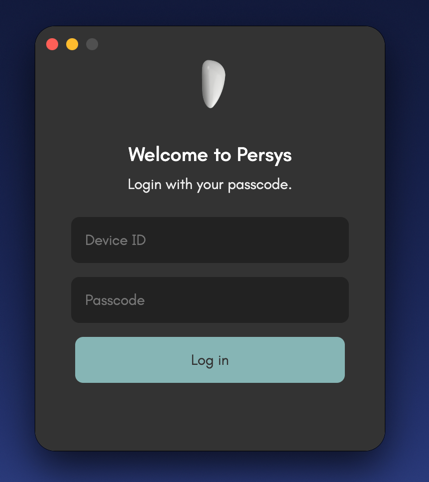 Once you have been connected to your device, login using the same "persys-0000" as the device ID and the default password `persys`.
You can change this password at any time.
Depending on your network settings and whether you're connected via device hotspot or local network, if you are not able to log in, add `.local` as the end of the device ID.
Once you have been connected to your device, login using the same "persys-0000" as the device ID and the default password `persys`.
You can change this password at any time.
Depending on your network settings and whether you're connected via device hotspot or local network, if you are not able to log in, add `.local` as the end of the device ID.